Sketch Layers
Every markup you place — signs, devices, dimensions, work areas — lives on a sketch layer: Bluebeam-style markup organization crossed with CAD layers. Markup layers live in the app's Layers panel (the left rail's Layers tab), side by side with your data layers, and every markup can be re-filed from the map with a right-click.
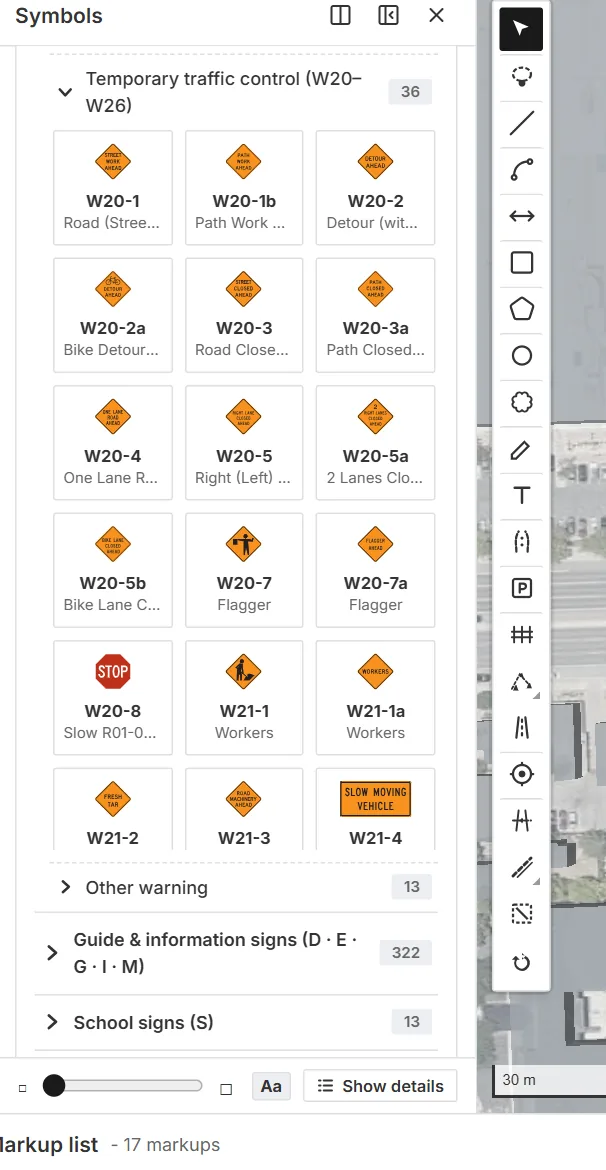
The left rail carries Symbols, Layers, and Settings. Markups are filed onto sketch layers you control.
Working with layers
- Add layer — the + button in the Layers panel header (next to New group) creates a new markup layer; new markups land on it. Rename it right away to keep the structure readable.
- Assign markups — right-click any markup on the map and hover Layer: pick one of your layers (the current one is checked), or New layer to create and file in one step. Right-clicking inside a multi-selection files the whole selection.
- Rename / show-hide / opacity / reorder / delete — markup layers are native Layers-panel cards: double-click to rename, the eye toggles visibility, drag to reorder, and delete removes the layer and its markups (the last layer can never be deleted). Hidden layers don't render, don't export, and don't snap.
- Groups — markup layers can be grouped with New group exactly like data layers (group visibility and opacity apply).
What layers give you
- Phasing — keep Phase 1 and Phase 2 markups on separate layers and toggle them; sheets, legends, and schedules all follow layer visibility, so a phase toggle re-quantifies the whole deliverable.
- Organization by trade — advance signs, taper devices, pedestrian control, dimensions each on their own layer, exactly like a Bluebeam markup structure.
- Clean exports — hidden layers don't render, don't schedule, and don't export to PDF.
Layers and markups are saved in the project file and restored exactly on reopen.
Undo
Ctrl+Z undoes document changes (placements, moves, deletes, layer operations); Ctrl+Shift+Z or Ctrl+Y redoes. Tool choice and selection are not part of undo history.