Taper a Work Zone by Hand¶
Generate a TTC Plan computes a whole closure at once. Sometimes you don't want a whole closure — you want this run of drums, tapered correctly, on a plan you are otherwise drawing yourself.
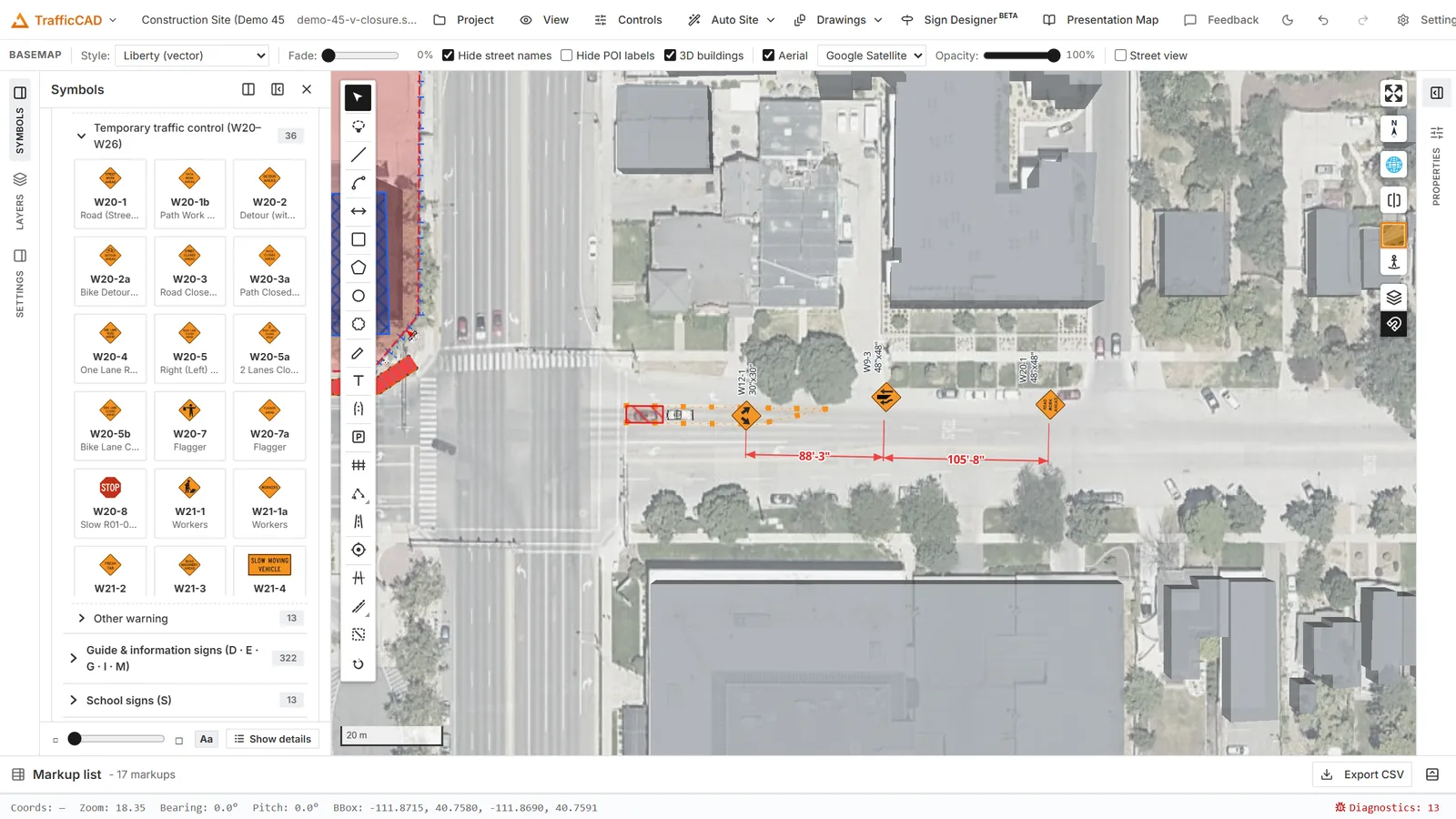
What you are building: a taper whose length comes from Table 6B-4 and whose spacing comes from §6K.01.
This tutorial covers the channelizer taper calculator: draw a run, tell it the speed and the taper type, and let it work out the length MUTCD requires. About ten minutes.
1. Draw the run¶
Pick the channelizing-device tool and click along the path the devices should follow — down the lane line, out around the work space, and back. Press Enter to finish.
Two things matter for what comes next:
- Draw at least one end with a clear lateral offset. The calculator needs to see where the traffic is being moved to. An end that runs straight along the lane line with no offset gives it nothing to measure — 4 ft of offset is the minimum.
- Draw past where the taper will end. The generator replaces that end of the run with a correct taper, so give it room to work in.
2. Set the speed¶
Select the run. In the Properties panel, find the block headed Tapers — MUTCD 6B.08 and set Speed S (mph).
This is S in Table 6B-4: the posted speed limit, the off-peak 85th percentile speed, or the anticipated operating speed — whichever your agency uses. Every length below is computed from it, so it is the one number worth getting right before anything else.
3. Choose the taper type¶
Each end of the run — Upstream taper — run start and Downstream taper — run end — gets its own Type:
| Type | Required length |
|---|---|
| Merging | at least L |
| Shifting | at least 0.5 L |
| Shoulder | at least 0.33 L |
| One-lane, two-way | 50–100 ft |
| Downstream | 50–100 ft |
For a lane closure, the upstream end is Merging and the downstream end is Downstream.
4. Generate¶
Press Generate on the upstream end.
TrafficCAD computes L from the speed and the lateral offset it measured, writes the required length into Length (ft), and rebuilds that end of the run as a taper of exactly that length. The devices re-space along it.
Do the same on the downstream end. You now have a run whose geometry is derived from the manual rather than eyeballed.
Override the length deliberately
Length (ft) stays editable after generating. Type a longer value and the taper regenerates at your length — useful when a driveway or a side street forces a longer taper than the minimum. Typing a shorter value than the computed minimum is possible too, but now you are the one who decided that, and you should be able to say why.
5. Fix the device spacing¶
A correct taper with wrong device spacing is still a wrong plan. The Tapers block carries a helper that sets the run's device spacing to the §6K.01 taper maximum — 1 × S ft, so 45 ft at 45 mph.
Tangent sections are allowed 2 × S, so a run spaced at the taper maximum stays compliant end to end. That is the safe default: one spacing for the whole run, tight enough for the taper, legal on the tangent.
To space a run by hand instead, use Spacing (ft) under Selected channelizing devices — along with Device (cone, drum, barricade, vertical panel), 3D display, and Show label.
6. Dimension it¶
Press Add dimension on each end.
This drops an associative dimension along the taper reading its true ground length. It is bound to the taper, so if you regenerate at a different speed the dimension re-reads itself. The reviewer gets the number on the drawing without measuring, and you cannot accidentally ship a plan whose annotation disagrees with its geometry.
7. Check the whole run¶
Selecting the run reports the spacing rule it is being held to and flags any part of it that exceeds the maximum. Work through the flags. A compliant run reads: correct taper length for the speed, device spacing at or under the taper maximum, and both ends dimensioned.
Reference: Channelizing Devices · Traffic Control Plans · Dimensions & Callouts
Next steps: Review the Plan in 3D & Street View — stand in the driver's seat and see whether the taper you just built actually reads from the road.