Exporting PDFs & Bluebeam
TrafficCAD's PDF pipeline produces true vector drawing sets: linework, title blocks, notes, tables, and dimensions render as crisp page content, and your signs, devices, and work areas export as real, editable PDF annotations — not flattened pixels. A reviewer in Bluebeam Revu or Acrobat can select, move, copy, comment on, or delete them like native markups.
Exporting a drawing set
From the Drawings workspace, the top bar has two buttons:
- Preview PDF — renders the whole set in an overlay ("exactly what exports — symbols stay editable in Bluebeam/Acrobat") with Download and Close preview buttons. Use it for a final check without leaving the workspace.
- Export PDF — writes the set directly, one page per sheet.
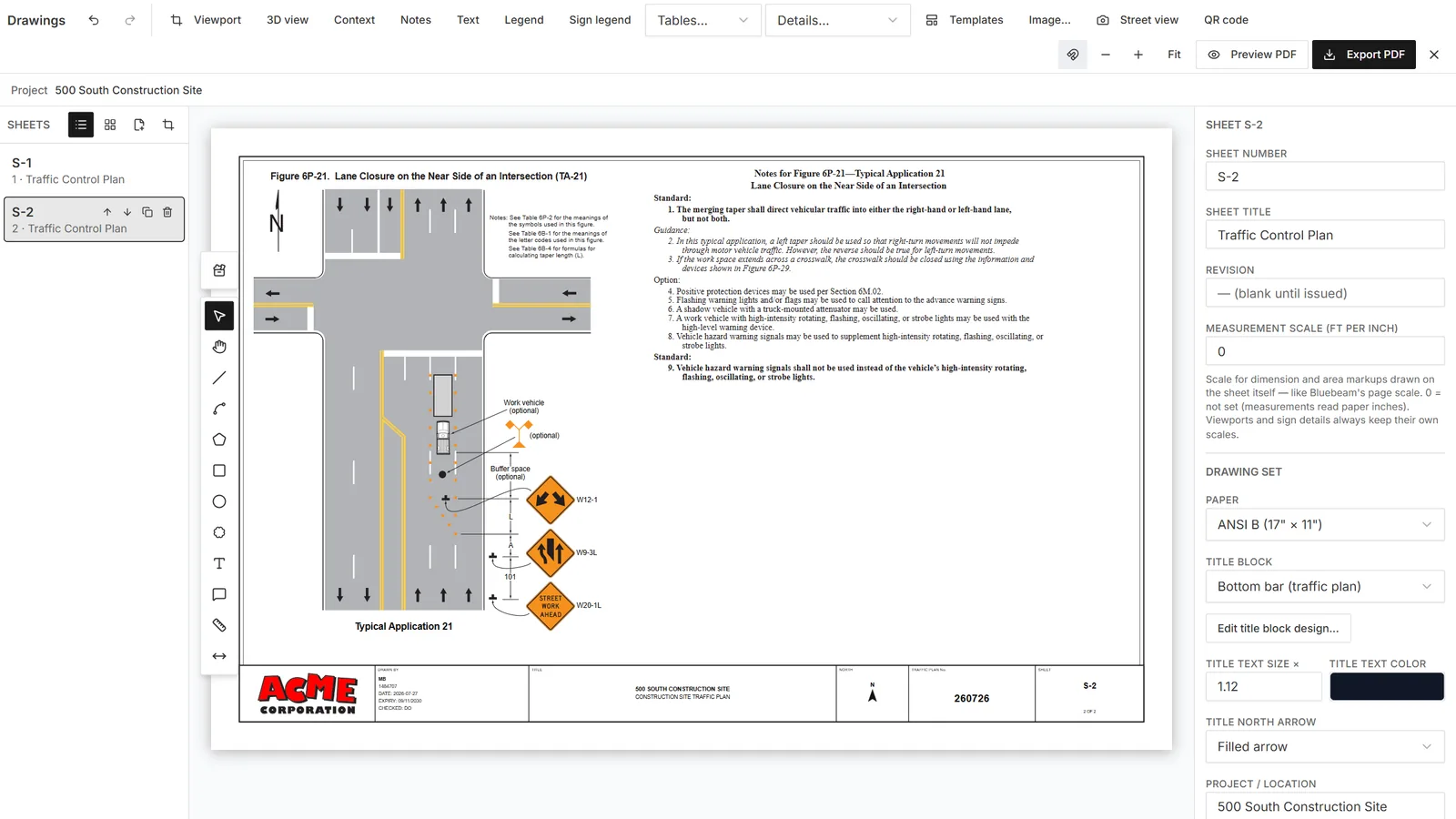
What the export produces: plan viewport, 3D inset, title block, and tables as vector page content — signs and devices as editable annotations.
The file is named from your Traffic plan no. (falling back to the
sheet number, e.g. S-1.pdf).
For a fast one-page export without opening the workspace, click the dropdown arrow beside the toolbar's Drawings button and choose Sheet export… — the dialog's Export sheet PDF button centers the sheet on the current map view at your chosen paper and scale, with the title block prefilled from your Company info and the left rail's Project properties. The success message says it plainly: "Saved — markups are editable annotations in Bluebeam/Acrobat."
What stays editable in Bluebeam
| On the sheet | In the PDF |
|---|---|
| Signs, devices, flaggers, vehicles, arrow boards | Stamp annotations with embedded vector artwork — the MUTCD code is the annotation subject, so they show up in Revu's Markups list by code |
| Work areas and zones | Polygon annotations — selectable, movable, editable |
| Title block, notes, legends, schedules, MUTCD tables | Vector page content — selectable, searchable text |
| Roads, device lines, pavement markings, fences, dimensions | Crisp vector linework at true scale |
| Every viewport — plan and 3D insets | Carries its markups as annotations |
Because devices and signs are annotations, a reviewer can restage a taper or slide a sign in Revu without asking you for the source file — and their markups round-trip in review workflows.
Scale you can trust
Sheets export at the exact engineering scale you chose — a dimension that reads 200'-0" measures 2 inches on a 1"=100' sheet. Dimension labels plot with their names and true ground distances, and stay readable on rotated viewports.
Tips
- Preview before sending. The preview is the literal export renderer, so what you check is what the agency receives.
- Long sets: each sheet is a page; sheet order in the navigator is page order in the PDF.
- If a viewport looks stale, hit its Recapture the basemap button before exporting — captures normally refresh automatically, but a forced recapture guarantees the latest imagery settings are baked in.
See also: Drawings & Plan Sheets · Schedules & Legends · Sharing & Collaboration