AI plan generation¶
TrafficCAD can draft a complete, MUTCD-compliant temporary traffic control plan from a plain-English description of the work. The AI reads your drawn work area and the roadway underneath it, chooses the matching typical application from MUTCD Part 6, and places every sign, channelizing device, flagger, vehicle, and dimension as ordinary editable markups.
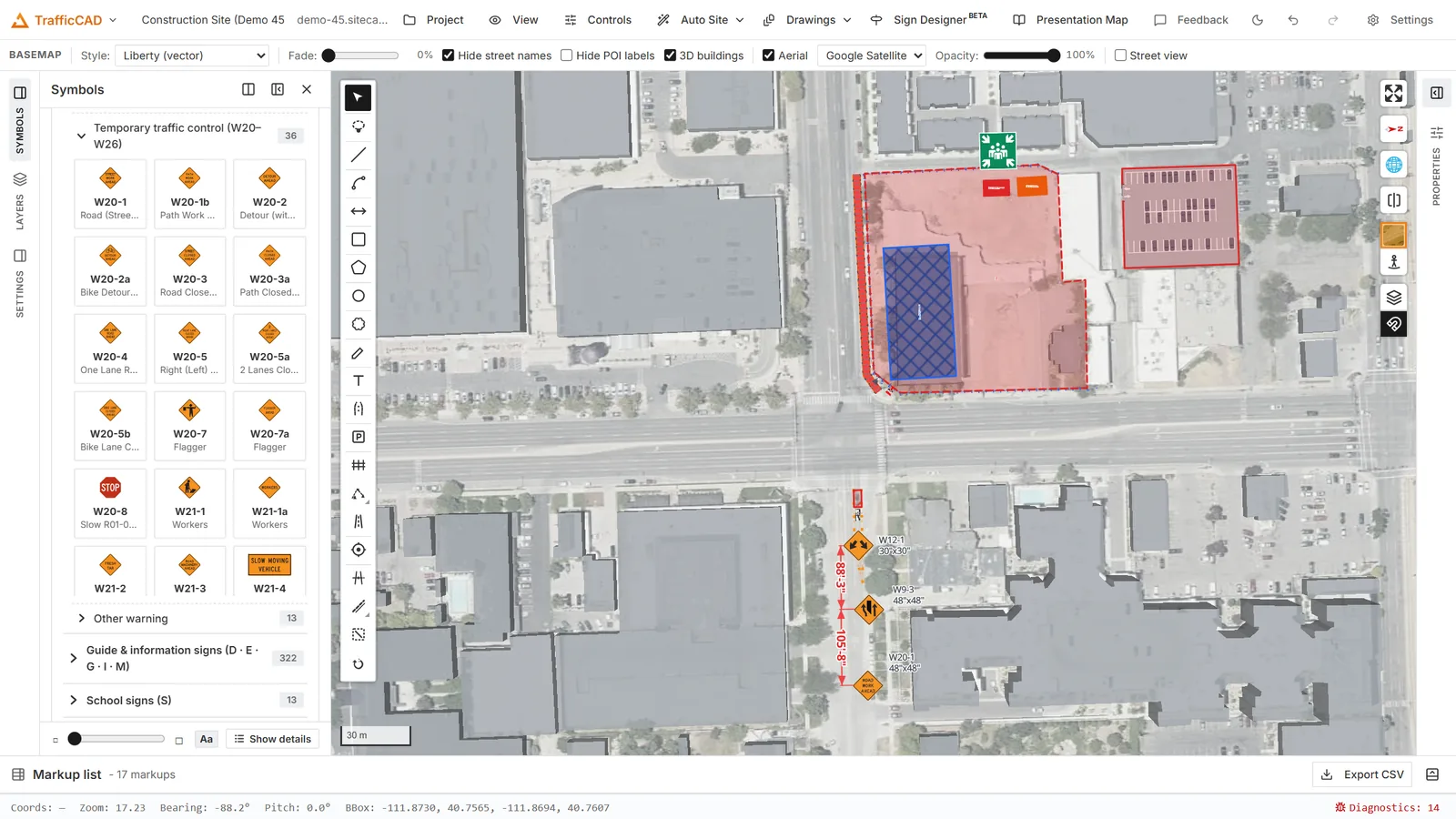
Whether it is drafted by hand, generated, or described in words, the plan is computed by the same cited rules engine.
No AI key? Right-click instead
The Traffic Control Plans generator builds the same MUTCD layouts deterministically — draw the work zone, right-click, Generate traffic control plan — with a parametric plan object, ten closure strategies, editable dimensions, and a cited compliance report. No API key or network required.
Engineering review required
Generated plans are drafts. The MUTCD (§6P.01) permits adapting typical applications under engineering judgment — a qualified person must review and approve every plan before use. Speed limits are safety-critical: the AI states the speed it used prominently; always confirm it matches the posted speed.
How it works¶
The AI never invents numbers. TrafficCAD's deterministic rules engine computes every value — taper lengths (Table 6B-4), advance sign spacing (Table 6B-1), buffer space (Table 6B-2), device spacing (§6K.01) — and the AI's job is scenario detection and orchestration:
- Site context — the roadway nearest your work area (from the basemap) and your drawn work area's length.
- Scenario selection — the typical application that fits your description (currently TA-1, TA-6, and TA-10; more coming).
- Generation — the rules engine computes stations and counts, and the generator projects them onto the actual road geometry.
- Basis of design — every distance and device count is reported with its MUTCD citation (table, section, and figure).
Using it¶
- Open the Traffic Control panel from the left rail.
- In AI plan generation, pick a provider (Claude or Gemini) and paste your API key. The key is stored only on this device.
- Draw the work area with the Area tool.
-
Describe the job and generate, for example:
A utility crew must close one lane of this two-lane street for a 200 ft work zone. Posted speed is 30 mph. Flaggers will control alternating one-lane traffic.
The plan lands on new sketch layers (TA-10 Signs, TA-10 Devices,
TA-10 Work area, TA-10 Dimensions) so you can toggle, lock, restyle, or
delete it as a unit — and every placed symbol stays individually editable.
Supported typical applications¶
| TA | Title | Use it for |
|---|---|---|
| TA-1 | Work Beyond the Shoulder | Work entirely off the roadway |
| TA-6 | Shoulder Work with Minor Encroachment | Shoulder work leaving ≥ 10 ft of lane |
| TA-10 | Lane Closure on a Two-Lane Road Using Flaggers | One lane closed, flaggers alternate traffic |
Freeway and expressway scenarios are out of scope for now — the AI declines them rather than guessing.
Asking the manual¶
The AI carries a full-text index of MUTCD Part 6 (11th Edition, Revision 1) and cites real sections when it explains a choice — ask follow-up questions like "why is the flagger station 75 feet back?" and it will ground the answer in §6D.06 and Table 6B-2.