Sign a Construction Site
Traffic control keeps the public safe outside the fence. Inside it, a different set of signs does the same job for the people working there: access control, PPE, welfare facilities, and — the ones that matter on the worst day — fire and evacuation.
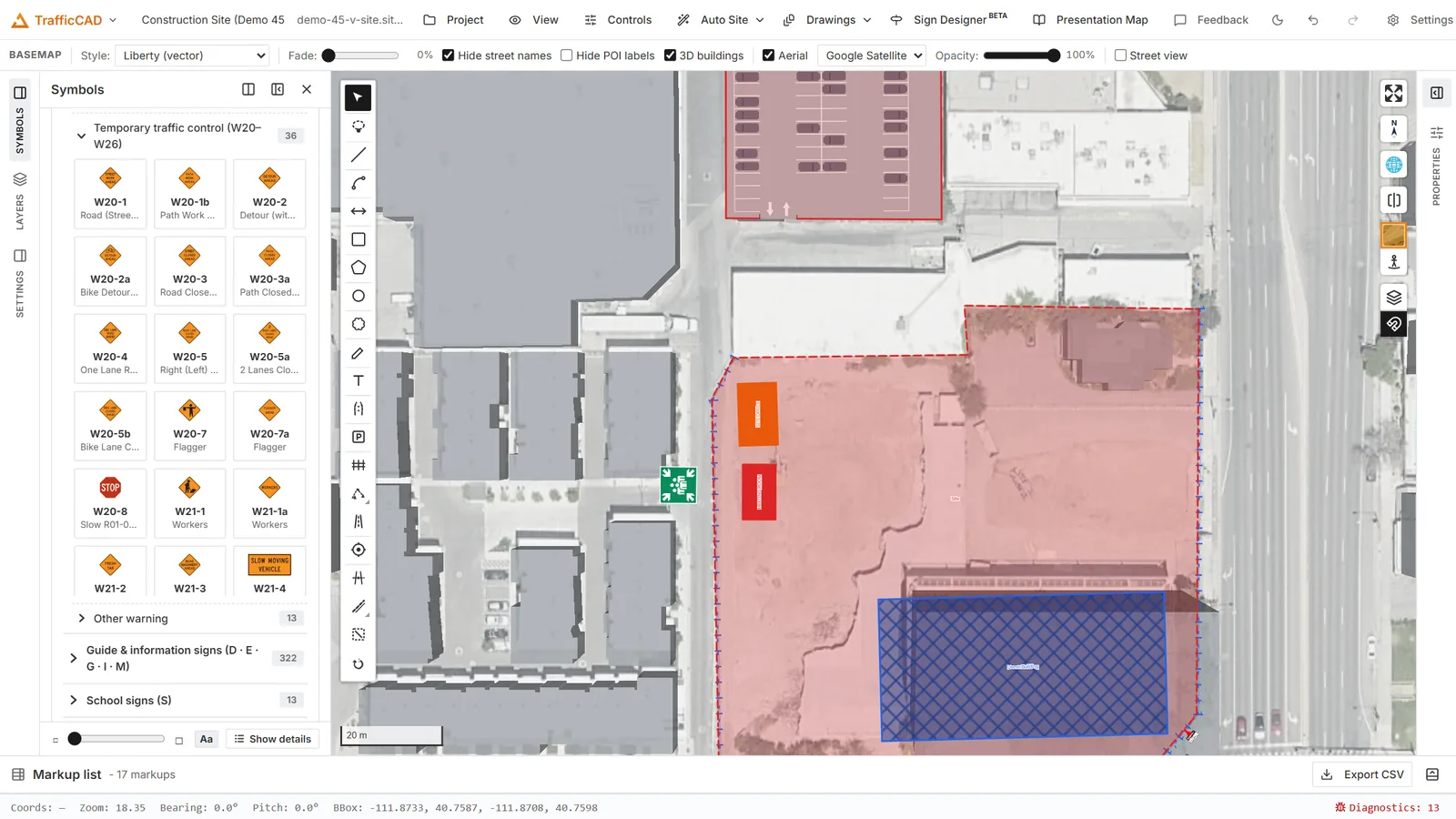
What you will build: a fenced compound with labelled zones, a haul route, and a full signage set.
This tutorial builds a site signage plan on top of a fenced compound, in about fifteen minutes.
1. Start from a fenced site
Work from the output of Fence a Site, or draw a quick perimeter with one gate. You need a boundary, an entrance, and some buildings or a compound area to sign.
2. Find the site sign libraries
Open Symbols in the left rail and scroll to the bottom. Beneath the MUTCD catalogues sit two more libraries, available in both the traffic and event-planning workspaces:
- Site Signage (
SS-01…SS-50) — access, parking and gate signs, DANGER / CAUTION notice boards, PPE requirements, site facilities, utility service markers, waste and recycling. - Fire & Emergency Planning (
FE-01…FE-73) — exits and evacuation, wayfinding arrows, first aid and rescue, fire-fighting equipment, fire protection systems, emergency contacts, and hazard pictograms.
Search by code (SS-07), by name (Visitor parking), or by keyword —
extinguisher, defibrillator, muster.
3. Sign the entrance
The gate is where the site talks to everyone who arrives, so it carries the most:
- Place a site safety notice board just inside the gate, facing approaching traffic.
- Add the PPE requirement signs beside it.
- Add visitor parking and site office direction signs so a visitor never has to guess and wander into the working area.
Signs place, rotate, scale, and group exactly like MUTCD signs. Group the entrance set onto one support so it moves as a unit if the gate moves.
4. Make the wording yours
Most published site signs carry generic text. Select a placed sign and edit the Sign text field in the Properties panel — one line per row of the sign face.
Put the real information on: the site name, the principal contractor, the site manager's phone number, the induction requirement. The wording is re-set as pure vector outlines in Arial-metric lettering matched to the original face, so it stays crisp at any scale in plans, sheet stamps, and PDF exports.
Clear the field to restore the published wording.
5. Lay out the fire and evacuation plan
Now work the route, not the signs:
- Mark the assembly point somewhere outside the working area with clear access from every part of the site.
- Walk each escape route from the far corners of the site to that point, placing exit and directional arrow signs at every decision point — a junction where someone could plausibly turn the wrong way is a decision point.
- Place fire-fighting equipment signs at each extinguisher point and first aid signs at the welfare facilities.
- Add the emergency contacts board next to the site notice board at the entrance.
Check the routes at eye level
Escape signage fails the same way traffic signage does: it is perfectly visible in plan and hidden behind a stack of materials in reality. Tilt into 3D and walk the routes — see Review the Plan in 3D & Street View.
6. Schedule it
Expand the Markup list at the bottom of the app. Every sign you placed appears as a Site sign row, with its code and its location.
Sort by Type, then Export CSV for the procurement list — including latitude and longitude for every sign, so whoever installs them knows exactly where each one goes.
7. Issue it
Compose the sheet in the Drawings workspace. A signage plan usually wants two things on the sheet: the plan itself, and a legend listing every sign code with its wording and count. Add a legend item and set Lists to the option that suits — signs as a table, or everything.
Exported to PDF, each sign becomes a movable Stamp markup whose subject is the sign code. Site staff with Bluebeam or Acrobat can drag a sign to where it actually ended up, and the plan stays a live record rather than a snapshot that was wrong by the end of the first week.
Reference: Site & Facility Signage · Sign & Device Library · Fencing & Site Protection · Schedules, Legends & Quantities