Sign Mounting & Supports¶
Every sign on a real street stands on something — and reviewers check the mounting height as surely as the sign code. TrafficCAD models the support as part of the sign: pick the mount, and the app applies the adopted standard's height rules (national, Texas, or California), draws the assembly in 3D, schedules it, and generates dimensioned mounting details for the sheet set.
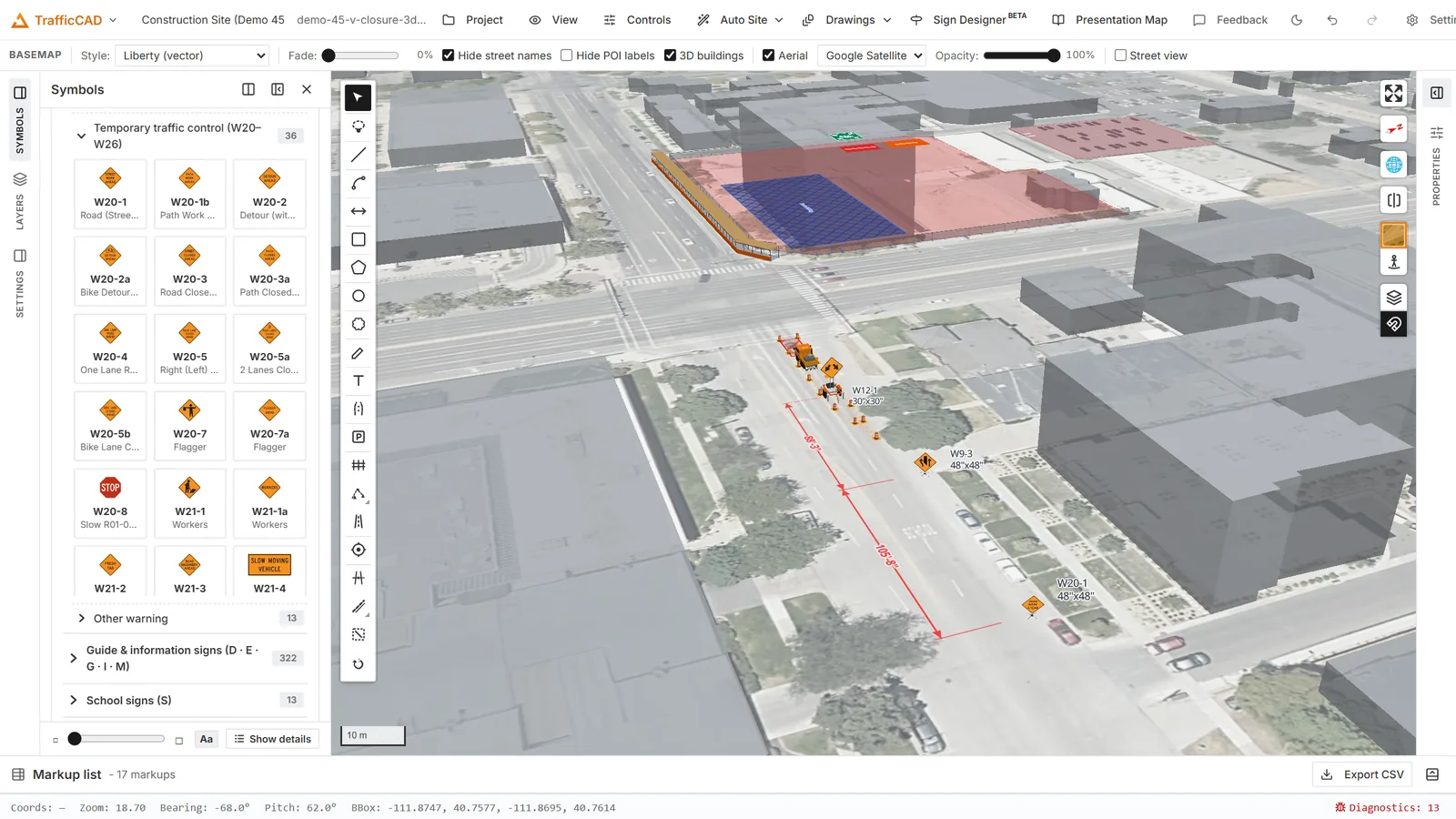
Tilt the map and every sign stands on its support, at the mounting height the plan specifies.
Mount types¶
With a sign selected, the Mounting group in Properties offers:
| Mount | Typical duty |
|---|---|
| None (face only) | Panel drawn at ground level, no support. |
| Portable sign stand | Spring-base stand with splayed legs — short-term, short-duration, mobile work. |
| Skid support | Wood skid frame with upright post(s) and sandbag ballast — intermediate-term. |
| Ground post(s) | Driven/embedded crashworthy post(s) — wood, U-channel, or perforated square steel tube — long-term stationary. |
| Type 3 barricade | Sign mounted on the barricade (road closures — the R11 series defaults here). |
| Flag tree (high-level) | High-level warning device: ≥ 2 flags at least 8 ft up, optional flasher, sign below (§6L.08). |
| Vehicle / trailer mounted | Sign on a work vehicle, shadow vehicle, or trailer — mobile operations (§6F.02 ¶16). |
New TTC signs auto-seed a sensible default when placed (portable stand; Type 3 barricade for R11), so plans are field-buildable from the first click.
Height and configuration¶
- Height (to bottom of sign) — with a Min button that snaps to the code minimum, and a hint quoting it, e.g. "Min 7'-0" — §6F.02 ¶05–06 (Standard — business/pedestrian areas ≥ 7 ft)".
- Area — Business / commercial / residential vs Rural area drives the post-mounted minimum (7 ft vs 5 ft).
- Posts (1–2) and Post type — steel U-channel, perforated square steel tube, wood 4×4.
- Warning flags (+ count), Warning light (flag trees), and Type B flasher options where the support takes them.
- Barricade width for barricade mounts.
- Secondary sign — mounted below another sign, allowed 1 ft lower (§6F.02 ¶08).
- Work duration — feeds the ≤ 3 days guidance for low portable supports (§6F.02 ¶11).
- Show in 3D — draws the full support and lifts the panel to its mounting height in tilted views.
Sign assemblies (grouped signs)¶
Real installs often stack several panels on one support — a warning sign with its advisory plaque, a route-marker assembly, a closure sign over a detour arrow. TrafficCAD models that directly:
- Ctrl+click each sign to build the selection (the first sign you select becomes the top panel).
- Right-click one of them and choose Group N signs.
The signs snap to one post point and stack top-to-bottom with a 2-inch panel separation. From then on the assembly behaves like one physical object while every member stays an ordinary, fully editable sign:
- One support. Every member adopts the same mount; the hardware is drawn once, sized to the whole stack (posts reach the top panel), and the mounting height applies to the bottom panel — the Properties panel says so with its citation (§6F.02 ¶08). Warning flags ride above the top panel.
- One move, one heading. Dragging any panel moves the whole assembly; rotating any member (heading control, R, or the rotate handle) spins every panel together.
- Individually editable. Click a member to edit its code, size, legend text, or label — the stack re-derives instantly. Deleting a member restacks the rest (a group of one quietly dissolves).
- Sign assembly panel. With a member selected, the Sign assembly group in Properties lists the panels top-to-bottom with ↑ / ↓ reorder buttons and an Ungroup signs button. The right-click menu adds Ungroup signs and Delete assembly too; ungrouped panels fan out along the sign's heading so nothing hides.
- Sheets follow. Plan stamps and code/size labels stack the same way in the PDF, each member still counts in the sign schedule, and a mounting detail for that support draws the whole assembly — every panel outlined with its code, a "TOP OF ASSEMBLY" dimension, and a cited assembly note.
Warning flags¶
Any panel-carrying support (everything except the flag tree, which is flags) takes §6F.03 warning flags: two 16-inch orange flags above the sign's top corners. Toggle them with the Warning flags checkbox in the Mounting group, or straight from the sign's right-click menu — Add warning flags / Remove warning flags. Flags render in 3D and in the mounting details, a cited note reminds you they must not block the face (§6F.01 ¶04–05), and a flagged support schedules as its own row — it is different hardware in the field.
Per-standard rules¶
The adopted standard changes the rules, and the citations follow:
- National MUTCD — 7 ft minimum where pedestrians are present, 5 ft rural (§6F.02 ¶04–06); portable/barricade supports ≥ 1 ft (¶07); signs over 50 sq ft on multiple breakaway posts ≥ 7 ft (¶15).
- Texas TMUTCD 2025 — 7 ft in all areas (§6F.02 / Fig. 6F-1), and square-tube posts as the default post kind.
- California MUTCD 2026 — recognizes the 5-ft uncurbed/no-sidewalk case; a 5–7 ft height where a sidewalk exists is flagged as a warning citing Fig. 6F-1(D), not silently allowed.
Findings appear below the mount controls — cited, severity-graded, and never blocking. A universal reminder covers crashworthiness.
Mounting details on sheets¶
In the Drawings workspace, Details… inserts a dimensioned mounting detail: a to-scale front elevation of the support — ground line, dimensioned heights (drawn red with "(BELOW MIN)" if you've overridden below the minimum), the actual signs from your plan that use that support, an architect's scale label, and numbered, cited install notes. Insert all types in plan or a single support type; the detail's inspector can override the support, height, and area context.
Schedules¶
The sign schedule's MOUNTING column summarizes each sign's support ("Portable sign stand @ 1'-0""), and the same sign on different supports or heights schedules as separate rows — the crew installs them differently, so the schedule says so.