Sharing & Collaboration
Four ways to put your plan in front of other people, from a QR code on a printed sheet to a fully live co-editing session.
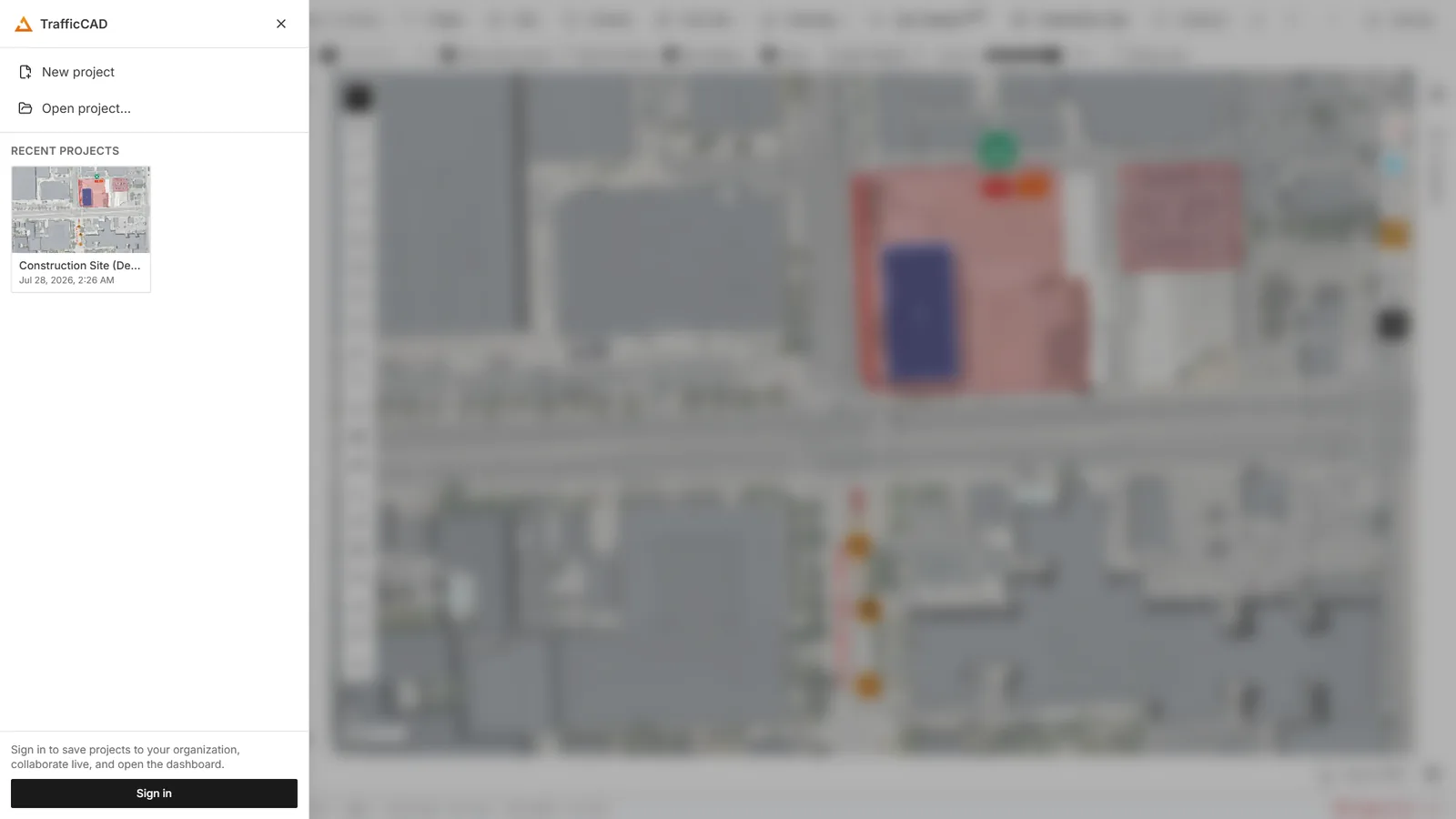
Cloud projects belong to your organization, so handing a plan to a colleague is a save, not an email.
Your organization
Everything shared in TrafficCAD belongs to an organization — your workspace. Projects saved to the cloud, seats, and billing all live there. Open the Dashboard from the TrafficCAD menu (the brand button at the far left of the toolbar) to manage it; the sidebar has Dashboard, Team, Billing, and Settings, plus Back to editor to return to your plan.
If you belong to more than one workspace — say your own and a client's — Switch organization in the TrafficCAD menu changes which one you are working in.
Roles
| Role | Can do |
|---|---|
| Owner | Everything, including billing and deleting the organization. |
| Admin | Manage members, invites, and seats. |
| Editor | Create and edit projects. |
| Viewer | Open and read projects, but not change them. |
Adding teammates
Dashboard → Team shows Organization details, how many seats you are using ("3 of 5 seats used"), the Members table, and pending Invites.
To add someone, enter their email and press Invite. TrafficCAD emails the invite and copies the link to your clipboard at the same time, so you can send it yourself through whatever channel you prefer. Invites reserve a seat and expire after 14 days; Copy link, Email again, and Revoke are on each pending row.
Seats are enforced by the server
Members plus pending invites can never exceed your subscription's seat count. If you are out of seats, use Add seats — or revoke an invite that is no longer needed.
Core is a single-user plan
Inviting teammates needs Complete or Max. On Core, the Team page shows "Invite your team with Complete" and an Upgrade plan button.
Cloud projects
Save to TrafficCAD Cloud in the TrafficCAD menu puts the project in your organization, where every member can open it from the {organization} projects list — each row showing when it was last updated and by whom. This is the everyday way to hand a plan to a colleague: no files to email, no question about which copy is current.
See Projects for the full menu.
Live collaboration
Start or join a live session from Project → Collaborate... (in event mode, the Tool Chest also has a Share live map… button). The Live collaboration dialog walks you through it:
- Pick Your name and Your color — that's how you appear to others.
- Under Start a session, choose Who can edit: Anyone can edit (co-editing) or Only you can edit (others watch) (view-only reviewers).
- Click Start session. You get a Session code, a Share link, a Scan to join QR, and Copy link / Copy code buttons.
Send the link (or code) to your team. Invitees see "You've been invited", pick a name and color, and Join.
During a session:
- What syncs: the whole project — layers, markups, styles, basemap, camera — plus live presence: every participant's cursor and viewport rectangle in their color.
- Participants panel: the host can flip anyone between Can edit and View-only, or Allow everyone to edit.
- Follow host's view locks your camera to the presenter — ideal for walkthroughs with a safety team.
- Session chat (the on-map drawer): short messages that can Attach the current map location — recipients click Go to this location.
- Leave session disconnects you; the host's plan stays intact.
Session behavior worth knowing
Sessions are relay-based with last-write-wins on simultaneous edits — fine for review and light co-editing, not a merge system. Joining a session replaces your local undo history (the shared document is the new baseline). Very large imported layers may be rejected from the sync snapshot. Sessions expire automatically after inactivity.
Availability
Live collaboration is included with Complete and Max. On Core the Collaborate... item shows a tier chip and offers an upgrade.
QR codes on printed sheets
The Drawings workspace has a QR code sheet item made for field crews: scanned off the printed sheet, it opens your live map on a phone. Set its URL in the inspector — paste the view-only session link from Project → Collaborate — plus a Caption (default "Scan for live map") and Size (in). The QR renders as crisp vector squares on the stage and in the PDF.
That means the sheet in the truck can never be out of date: the print shows the revision it was issued at, and the QR shows the plan as it is now.
Info popups travel with shared plans: anything you've annotated with the Info (map popup) panel — title, capacity, contact, schedule fields — shows when a reviewer clicks the markup in their browser.