Sign Display, Labels & Leaders
Plans are flat; streets aren't. TrafficCAD renders every symbol correctly in both worlds — MUTCD plan glyphs looking straight down, true 3D when the camera tilts — and gives signs the annotation kit a reviewer expects: code/size labels and leader lines, including the MUTCD sign-face "T".
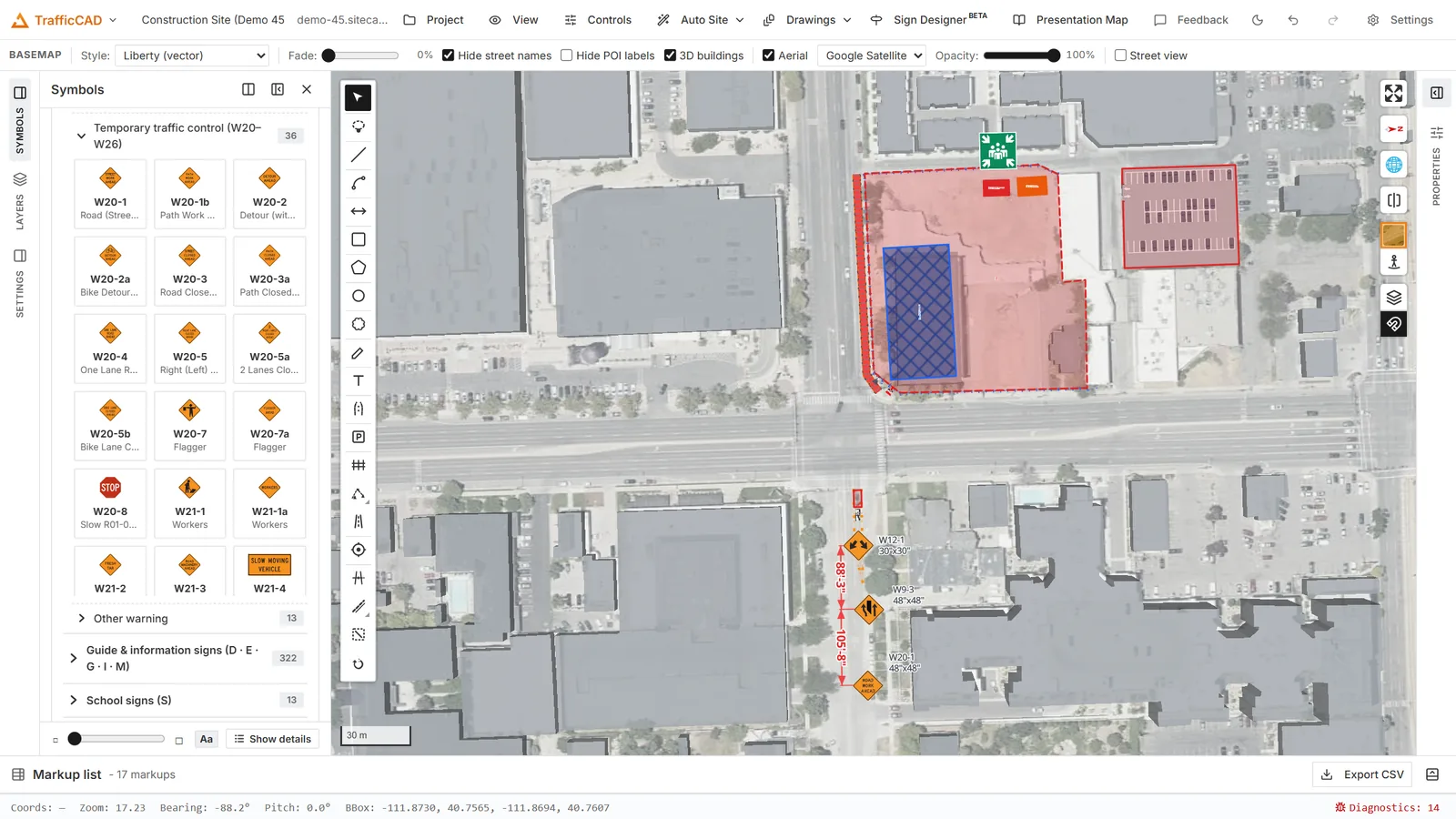
Placed signs carry their code and size as labels; both are styled project-wide or per sign.
2D and 3D display modes
Select a symbol and the Selected symbol panel exposes three independent choices:
| Control | Options | What it means |
|---|---|---|
| 3D display | Stands upright / Flat on ground | Upright symbols rise off the map when the camera tilts; flat symbols stay draped on the pavement. Sign faces, PCMS, and arrow boards default upright; devices, personnel, and area glyphs default flat. |
| 3D rotation | Faces the camera / Fixed plan heading | Camera-facing signs billboard toward the viewer — always legible. Fixed plan heading is true 3D: the panel holds its real-world orientation, so it reads face-on from the approach, edge-on from the side, and mirrored from behind — the drive-through check. |
| 3D device | Standing 3D device / Flat plan symbol only | For mesh-capable devices (cones, drums, panels, barricades, vehicles, arrow boards): stand the true Figure 6K-1 model or keep the plan glyph. |
In plan view (no tilt) everything renders as the standard plan symbols, so the printed sheet always reads like the manual.
With a mount shown in 3D, the whole assembly — support and panel, lifted to its mounting height — stands and rotates together.
Sign labels
The Tool Chest's Sign labels section toggles map-wide callouts: Show code (W20-1) and Show size (48"x48"). Labels sit under each sign, move and scale with it, and print on sheets. To re-seat one, select the sign and drag its label grip; the label can also be given its own rotation.
Leaders
Right-click a symbol → Add leader to draw a leader line from the sign to the thing it's pointing at (right-click again for Delete leader). With the symbol selected, the leader rows in Properties set:
- Leader color / width — the line itself.
- Leader arrow — the tip mark: arrows (filled/open), dot, square, diamond, slash tick, or Sign face (plan symbol).
- Arrow size — scales the tip mark (one undo step per slider drag).
- Leader shape — Angled (elbow) or Curved; both bend at the middle grip, and the tip and elbow have their own grips for precise attachment.
The sign-face "T"
Sign face (plan symbol) draws the MUTCD plan-view sign symbol — the "T" — at the leader's tip, rotated to the sign's heading, so the plan shows exactly which direction of travel the sign faces while the leader's stem points at the sign location. It's the manual's own convention, straight off the typical-application figures.
3D extrusion for areas
Any closed markup can stand up too: the Markup style → 3D extrusion rows give a polygon a height, base elevation, and color — quick massing for a stage footprint, a stockpile, or a building pad in the 3D check. Dimension labels have their own 3D choice: Upright (stands in 3D) or Flat on ground.
See also: Aerial Imagery & 3D Views — camera controls, imagery, and how 3D views land on sheets.