Sign & Device Library
The Symbols panel (the left rail's Symbols tab — "the Tool Chest") is the full FHWA catalog as live artwork: over a thousand standard highway signs, every plan-view device symbol from MUTCD Table 6P-2, and — in event mode — the event object catalog. Every sign is official vector artwork, never a redrawn approximation, with editable Highway Gothic legends on signs whose lettering TrafficCAD has recognized.
Choosing a standard
The Standard dropdown at the top of the Symbol library switches the whole catalog between adopted manuals:
- National MUTCD — the FHWA catalog
- California MUTCD — Caltrans
- Texas MUTCD — TxDOT
Switching re-filters browsing and search so every sign offered is compliant with the selected manual — a state library shows the national signs that state adopts plus the state's own signs. The choice persists with the project and also drives mounting-height rules and citations. See State Standards & Libraries.
Browsing and searching
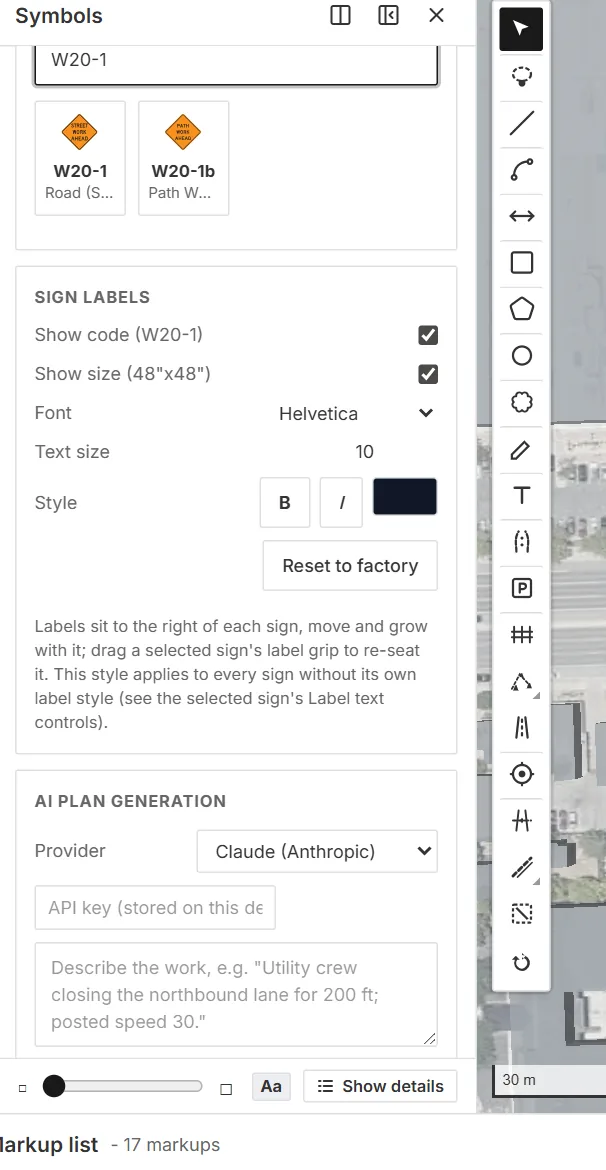
Searching "W20-1" in the Tool Chest: the matching cards show official artwork; the panel below carries variant, size, color, and scale.
- Search — one box ("Search signs & devices (W20-1, road work, cone…)") matches codes and plain names across the whole catalog.
- Browse — collapsible groups with counts: Regulatory signs (R), Warning signs (W), Guide & information signs (D · E · G · I · M), School signs (S), Object markers (OM), Emergency management signs (EM) — each subdivided by MUTCD chapter section ("Stop, yield & right-of-way (R1)", "Advance traffic control (W3)"…). The Temporary traffic control (W20–W26) section opens by default — it's the TCP workhorse.
- Devices — plan-view symbol groups: Channelizing & barriers, Signs, boards & lights (arrow boards, PCMS, warning lights, flag trees, signals, luminaires), Personnel & vehicles, and Areas, markings & direction. Devices are common to every standard.
- My signs — signs you've designed in the Sign Designer and added to the Tool Chest appear first.
- Expand all / Collapse all — the button above the group tree opens every group and every MUTCD section at once, or closes the lot. Use Collapse all to get back to a clean list after hunting through several series. Expanding everything loads the whole catalog's thumbnails, so give it a moment on a large library. The same button sits above the group tree in the Drawings workspace's Symbols panel.
- Thumbnail size — the triangle slider pinned at the bottom of the Symbols tab (Bluebeam-style: small △ left, large △ right) resizes the cards; slide toward the small triangle to fit three or four per row. It stays put while the panel scrolls, and the size is remembered on this device.
Texas users: TxDOT's CW-series work-zone codes file with their national W-series sections, so CW20-1 is where you'd expect W20-1.
Placing a symbol
Click a card and placement arms immediately — the ghost symbol follows your cursor (snapping to the grid) and each click drops one. Configuration appears below the card:
- Variant — directional/legend variants where published (W20-5 Left/Right, distance legends…).
- Size — the published face sizes for the sign. Signs the manual publishes without a size require one first: pick from the standard MUTCD ladder (12"×18" up to 72"×72") or enter a Custom size in inches.
- Color — Standard or Incident (fluorescent pink) for the Chapter 6O incident-management scheme.
- Scale — Symbolic (readable) or True ground size.
- Arrow boards add Display (the Figure 6L-3 modes) and Mounting (trailer/truck) — see Sign Display.
New TTC-series signs place with a sensible default support already attached (a portable stand; R11 road-closure signs get a Type 3 barricade) — see Sign Mounting.
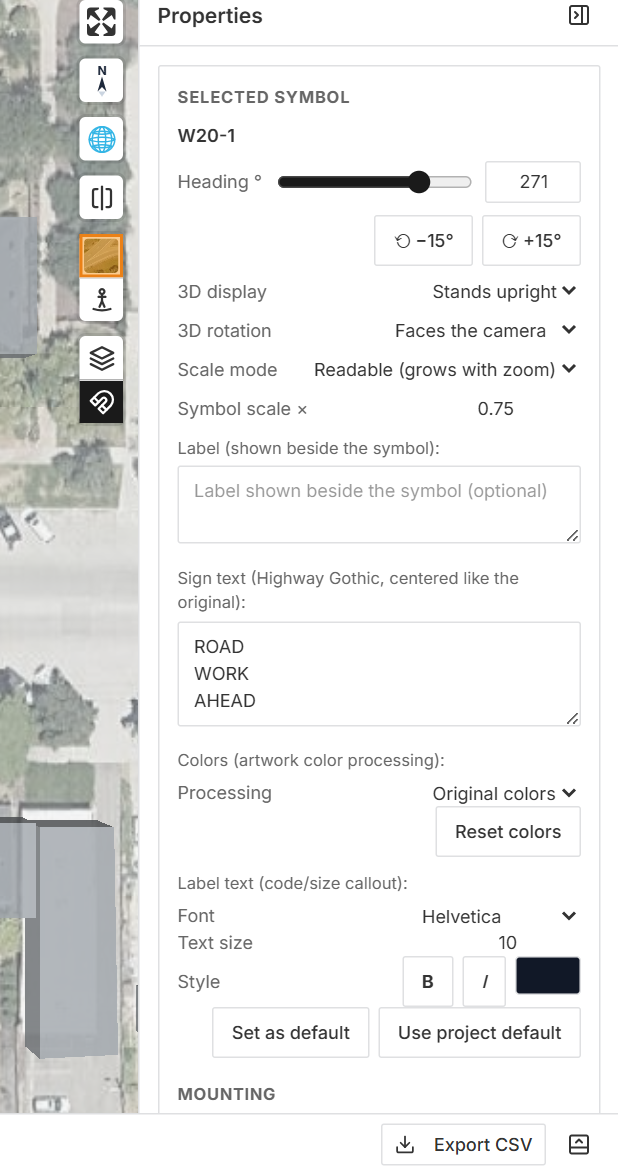
One click placed this W20-1 at 48×48". The Properties panel carries heading, 3D display, and the cited mounting checks ("Heights comply").
Editing a placed sign
Select a sign to open Selected symbol in the Properties panel:
- Heading ° — slider, numeric field, and ⟲/⟳ 15° buttons (or R / Shift+R on the keyboard). The heading is the sign's plan orientation — which traffic it faces.
- Sign text — for signs with a recognized Highway Gothic legend, a multi-line edit box ("Sign text (Highway Gothic, centered like the original)"). Retype the legend — a street name, a distance, a custom message — and TrafficCAD re-lays real Highway Gothic outlines at the exact original geometry: same baselines, letter heights, series, and color, centered like the published sign. Clear the box to restore the original. Symbol-only signs have no text box.
- 3D display / rotation / mounting — see Sign Display, Labels & Leaders and Sign Mounting.
Sign labels
The Tool Chest's Sign labels section adds map-wide callouts under every sign: Show code (W20-1) and Show size (48"x48"). Labels move and grow with their signs; drag a selected sign's label grip to re-seat it.
Provenance
Sign artwork comes from the FHWA Standard Highway Signs releases (public domain) and the state manuals' own published artwork; plan-view device symbols are extracted from MUTCD Table 6P-2 and Figure 6L-3 vector content. Every catalog entry records its source, and placed signs carry their citation in their comments.